 WhatIs.site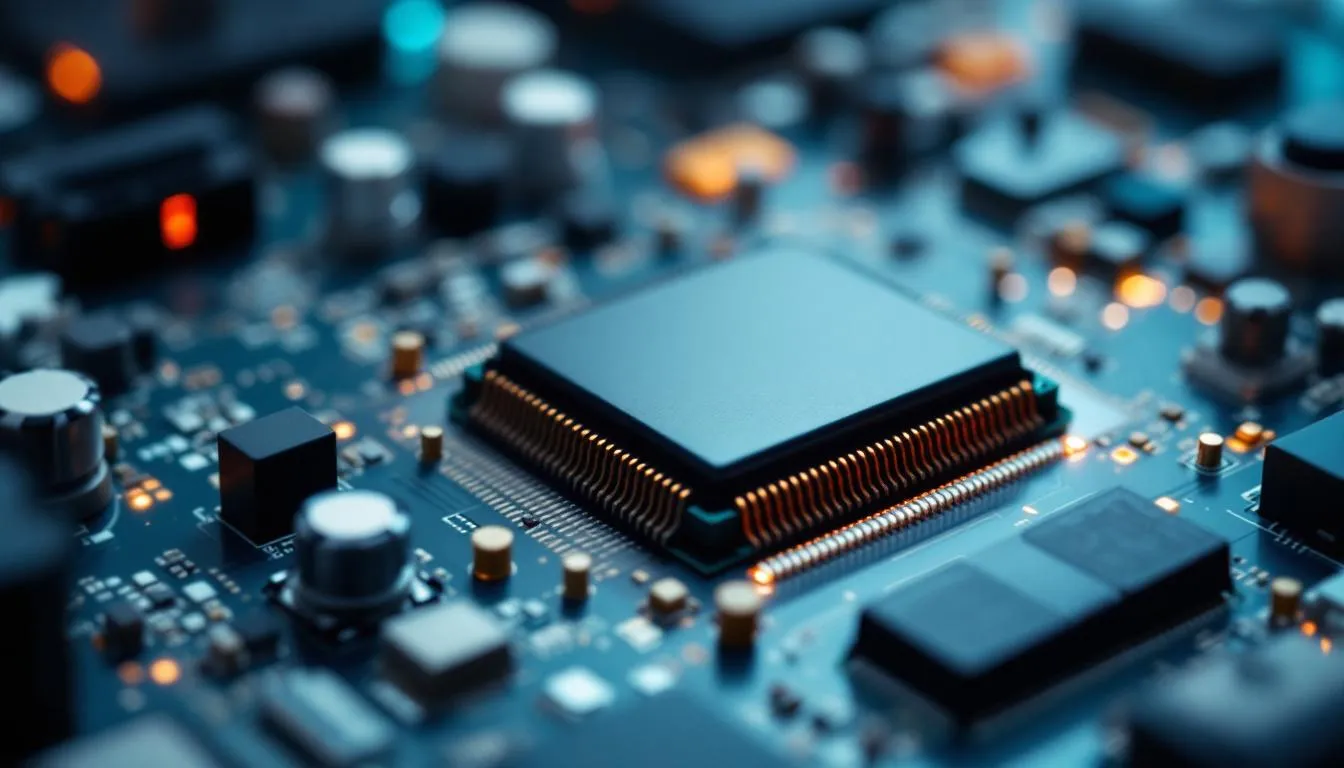
Table of Contents
What Is Computer Hardware?
Computer hardware refers to the physical components of a computer system — the tangible parts you can touch, from the processor that executes instructions to the screen that displays results, the keyboard you type on, and the drives that store your files. It’s the material foundation that makes all software possible.
The Big Picture: How Hardware Works Together
Before diving into individual components, it helps to understand the basic flow. Your computer hardware works like a relay team:
- Input devices (keyboard, mouse, microphone) capture your actions
- The CPU processes instructions and data
- RAM provides fast temporary storage for active work
- Storage holds data permanently
- Output devices (monitor, speakers, printer) present results
- The motherboard connects everything together
- The power supply keeps it all running
Every piece depends on the others. A blazing-fast CPU is useless without enough RAM to feed it data. A massive storage drive doesn’t help if the CPU can’t process what’s on it quickly enough. Understanding how components interact is just as important as knowing what each one does.
The CPU: Your Computer’s Brain
The Central Processing Unit is the primary processor that executes program instructions. When people talk about a computer’s “chip” or “processor,” this is what they mean.
How CPUs Work (The Short Version)
A CPU executes instructions in a cycle: fetch an instruction from memory, decode it to figure out what to do, execute the operation, and write the result. Modern CPUs do this billions of times per second.
What makes modern CPUs remarkable is how many tricks they use to go faster. They don’t just execute one instruction at a time — they use pipelining, out-of-order execution, and branch prediction) to process multiple instructions simultaneously. A modern Intel or AMD processor might have 20+ pipeline stages and execute 4-6 instructions per clock cycle.
Key CPU Specifications
Clock speed (measured in GHz) — how many cycles per second. A 5 GHz processor completes 5 billion cycles per second. But clock speed alone doesn’t determine performance. Architecture matters enormously.
Core count — modern CPUs have multiple processing cores. An 8-core CPU can genuinely work on 8 things simultaneously. But software must be written to use multiple cores, and many programs still primarily use one.
Threads — Intel’s Hyper-Threading and AMD’s SMT let each core handle two threads simultaneously by sharing execution resources. An 8-core, 16-thread CPU can handle 16 simultaneous threads.
Cache — small, incredibly fast memory built into the CPU. L1 cache (per-core, ~32-64 KB) is fastest. L2 cache (per-core, ~256 KB-1 MB) is larger but slower. L3 cache (shared, ~8-64 MB) is the largest on-chip cache. Cache size dramatically affects real-world performance because accessing main RAM is 100-300 times slower than accessing L1 cache.
TDP (Thermal Design Power) — how much heat the CPU produces, measured in watts. Higher TDP means more performance but also more heat and power consumption. Desktop chips typically run 65-125W. Laptop chips aim for 15-45W. Server chips can exceed 300W.
Intel vs. AMD vs. ARM
Intel and AMD have dominated desktop and server CPUs for decades using the x86 architecture. AMD’s Ryzen and EPYC processors have been particularly competitive since 2017, often offering more cores per dollar.
ARM processors — used in virtually every smartphone — have moved into laptops (Apple’s M-series) and servers (Amazon’s Graviton, Ampere Altra). They prioritize performance per watt, which is why Apple’s MacBooks get exceptional battery life while outperforming many Intel-based laptops.
The choice between them depends on your workload, budget, and ecosystem requirements. For most people, any modern CPU from any of these companies is more than adequate.
Memory (RAM): The Fast Stuff
Random Access Memory is your computer’s short-term working memory. It holds the data and programs your CPU is actively using. When you open an application, it loads from storage into RAM. When you switch between browser tabs, that content is in RAM.
Why RAM Speed and Capacity Matter
RAM is dramatically faster than storage. DDR5 RAM transfers data at 50-70 GB/s. Even a fast NVMe SSD tops out around 7 GB/s. This 10x speed gap is why your computer slows to a crawl when RAM fills up — the system starts using storage as overflow (called “swapping” or “paging”), and everything gets 10x slower.
How much RAM do you actually need?
- 8 GB — bare minimum for modern use. Fine for web browsing and basic office work. You’ll feel the limit with many browser tabs or larger applications.
- 16 GB — the sweet spot for most people in 2026. Handles multitasking, gaming, photo editing, and general development comfortably.
- 32 GB — recommended for video editing, professional 3D work, heavy software development, or running virtual machines.
- 64 GB+ — specialized workloads like machine learning, scientific computing, or running many virtual machines simultaneously.
DDR5 vs. DDR4
DDR5 (released 2021) doubles the bandwidth of DDR4 and supports higher capacities per module. It’s standard on all new platforms from Intel and AMD as of 2024+. DDR4 systems are still perfectly usable but can’t be upgraded to DDR5 — the slots are physically different.
The practical performance difference between DDR4 and DDR5 for most tasks is modest (5-15%). The bigger advantage is future-proofing and higher capacity support.
Storage: Where Your Data Lives
Storage retains data when the power is off. It holds your operating system, applications, documents, photos, games — everything.
SSDs vs. HDDs
Solid State Drives (SSDs) use flash memory with no moving parts. They’re dramatically faster than hard drives, completely silent, and more resistant to physical shock. An NVMe SSD connected via PCIe can read data at 5,000-14,000 MB/s.
Hard Disk Drives (HDDs) use spinning magnetic platters and a mechanical read/write head. They’re much cheaper per terabyte ($15-20/TB vs. $50-80/TB for SSDs) but vastly slower (100-200 MB/s sequential read). They’re still used for mass storage where speed isn’t critical — backup archives, NAS systems, surveillance cameras.
If you’re building or buying a computer in 2026, an SSD for your operating system and primary applications is non-negotiable. The performance difference between booting from an HDD and an SSD is like the difference between walking and driving. It’s that significant.
NVMe vs. SATA
SSDs come in two interface flavors. SATA SSDs use the older interface designed for hard drives — they max out around 550 MB/s. Still much faster than an HDD, but limited by the interface. NVMe SSDs connect directly to the PCIe bus, reaching 5,000-14,000 MB/s depending on generation (PCIe 3.0, 4.0, or 5.0).
For most people, the difference between SATA SSD and NVMe is barely noticeable in daily use (applications open in 1 second vs. 0.5 seconds). NVMe shines for large file transfers, video editing, and workloads that involve moving lots of data.
The Motherboard: The Nervous System
The motherboard is the main circuit board that connects every component. CPU, RAM, storage, graphics card, USB ports, network interfaces — all plug into or are built onto the motherboard.
Key Motherboard Features
Socket type determines which CPUs are compatible. Intel’s LGA 1700 and AMD’s AM5 are the current desktop sockets. You can’t put an Intel CPU in an AMD motherboard or vice versa.
Chipset determines which features the motherboard supports — number of USB ports, PCIe lanes, overclocking capability, storage connections. Higher-end chipsets (Intel Z-series, AMD X-series) offer more features but cost more.
Form factor — ATX is the standard desktop size. Micro-ATX is smaller and cheaper. Mini-ITX is tiny for compact builds. The form factor determines what cases the motherboard fits in and how many expansion slots are available.
PCIe slots — expansion card interfaces. Your graphics card goes in a PCIe x16 slot. Network cards, sound cards, and additional storage controllers use smaller PCIe slots.
VRM (Voltage Regulator Module) quality matters for CPU stability and overclocking. Cheap motherboards with weak VRMs can throttle high-end CPUs under sustained load.
The GPU: Graphics and Beyond
The Graphics Processing Unit was originally designed for rendering computer graphics — turning 3D geometry into pixels on your screen. But GPUs have become general-purpose parallel processors used for machine learning, scientific computing, cryptocurrency mining, and video encoding.
Integrated vs. Dedicated Graphics
Integrated graphics are built into the CPU. Intel’s UHD and Iris Xe graphics, AMD’s Radeon integrated graphics, and Apple’s GPU cores in M-series chips. Adequate for desktop use, video playback, and light gaming. Not suitable for serious 3D work.
Dedicated graphics cards (NVIDIA GeForce/RTX, AMD Radeon RX) are separate components with their own processor and memory. A high-end GPU has thousands of cores and 12-24 GB of dedicated video memory (VRAM). Essential for gaming, 3D rendering, video editing, and machine learning.
GPU Memory (VRAM)
VRAM holds textures, frame buffers, and other graphics data. Unlike system RAM, VRAM is physically on the graphics card and directly accessible by the GPU.
- 4-6 GB — adequate for 1080p gaming
- 8-12 GB — comfortable for 1440p gaming and most 3D work
- 16-24 GB — 4K gaming, professional 3D rendering, and large machine learning models
Running out of VRAM causes severe performance drops — far worse than running out of system RAM. When a game or application exceeds VRAM, it falls back to system RAM over the PCIe bus, which is dramatically slower.
Power Supply: The Unsung Hero
The Power Supply Unit (PSU) converts AC power from your wall outlet into the DC voltages your components need (3.3V, 5V, 12V). It’s the least glamorous component and arguably the most important for system reliability.
A failing PSU can damage every component in your system. It can cause random crashes, data corruption, and permanent hardware damage. Don’t cheap out on the PSU.
Wattage — your PSU needs enough capacity for your components. A basic system might need 400W. A high-end gaming system with a power-hungry GPU can require 850W or more. The latest NVIDIA RTX 4090 alone can draw 450W under load.
Efficiency rating — 80 Plus certifications (Bronze, Silver, Gold, Platinum, Titanium) indicate how efficiently the PSU converts AC to DC. An 80 Plus Gold PSU wastes less power as heat and runs cooler. Gold is the recommended minimum for most builds.
Modular vs. non-modular — modular PSUs let you connect only the cables you need, reducing clutter and improving airflow. Semi-modular is a good middle ground where essential cables are fixed and optional ones are removable.
Cooling: Managing Heat
Every electronic component produces heat. Left unmanaged, heat causes throttling (automatic speed reduction), instability, and eventual failure. Cooling is a critical part of any computer system.
Air Cooling
Heat sinks with fans are the most common cooling method. A metal heat sink (usually aluminum or copper) absorbs heat from the component through direct contact. Fins increase surface area. Fans blow air across the fins to dissipate heat.
A good tower-style air cooler for a CPU costs $30-60 and handles even high-end processors adequately. They’re reliable, quiet when well-designed, and essentially maintenance-free.
Liquid Cooling
Liquid cooling pumps coolant through a waterblock attached to the CPU (or GPU), carrying heat to a radiator where fans dissipate it. More effective than air cooling for high heat loads and can be quieter since the radiator fans can run at lower speeds.
All-in-one (AIO) liquid coolers come pre-assembled and sealed. Easy to install, moderate performance, some risk of pump failure or leaks (rare but catastrophic).
Custom loop cooling uses individually selected components — pump, reservoir, waterblocks, radiator, tubing. Maximum cooling performance and flexibility but expensive, complex to set up, and requires maintenance.
For most people, a quality air cooler is the right choice. AIO liquid coolers look impressive and perform well but add complexity and cost for marginal benefit in typical use cases.
Peripherals: Input and Output
Peripherals are the devices you interact with directly.
Input Devices
Keyboards come in membrane (cheap, quiet, mushy), mechanical (tactile, durable, loud, customizable), and low-profile varieties. For heavy typing, mechanical keyboards with quality switches are worth the premium — the difference in feel is immediately obvious.
Mice range from $10 basic models to $150+ gaming mice with adjustable DPI (sensitivity), multiple buttons, and wireless technology with imperceptible latency. For general use, any decent mouse works. For gaming or precision work, sensor quality and shape matter.
Microphones, webcams, drawing tablets, game controllers — the peripheral ecosystem is vast. Quality varies enormously at every price point.
Output Devices
Monitors are perhaps the most impactful peripheral for daily use. Key specifications:
- Resolution — 1080p (Full HD) is the minimum acceptable. 1440p is the current sweet spot. 4K (3840x2160) is increasingly common but demands more GPU power.
- Refresh rate — 60 Hz is standard. 144 Hz is the gaming standard (noticeably smoother). 240 Hz+ exists for competitive gaming.
- Panel type — IPS offers the best color accuracy and viewing angles. VA provides better contrast. OLED delivers perfect blacks and instant response times but is more expensive.
- Response time — how quickly pixels change color. Lower is better for reducing motion blur. 1ms is the gaming target.
Connectivity
USB is the universal connector. USB 3.2 Gen 2 delivers 10 Gbps. USB4 and Thunderbolt 4 reach 40 Gbps. USB-C is the standard connector shape going forward.
Wi-Fi 6E and Wi-Fi 7 provide wireless networking with speeds exceeding 1 Gbps in ideal conditions.
Bluetooth 5.3+ handles wireless peripherals — keyboards, mice, headphones, controllers.
Laptops vs. Desktops: The Trade-offs
Desktop hardware is faster, cheaper, and upgradeable. You can swap out nearly any component. Cooling is more effective because there’s more space for heat sinks and fans.
Laptop hardware is constrained by size, weight, heat, and battery life. A laptop CPU is typically 30-50% less powerful than its desktop counterpart at the same generation. Laptop GPUs are also significantly cut down from desktop equivalents. And once you buy a laptop, you’re mostly stuck with what you got — RAM and storage may be upgradeable, but CPU and GPU are usually soldered to the board.
The choice is about lifestyle. If portability matters, get a laptop. If performance, value, and upgradeability matter more, build or buy a desktop. Many people have both — a desktop for heavy work and a laptop for mobility.
Building vs. Buying
Building a desktop PC from individual components is a well-established hobby and a practical way to get exactly what you want. The basic assembly process:
- Install CPU into motherboard socket
- Install RAM into motherboard slots
- Mount motherboard in case
- Install CPU cooler
- Install storage drives
- Install power supply
- Install GPU
- Connect all cables
- Install operating system
It takes 1-3 hours for a first-time builder. The risk of breaking something is low if you follow instructions and handle components carefully — the most common mistakes are forgetting to connect a cable or not seating RAM fully.
There are excellent video guides and communities (r/buildapc, Tom’s Hardware forums) that walk you through every step. It’s genuinely not as intimidating as it seems.
Hardware Trends and What’s Coming
Chiplet architecture — AMD pioneered multi-chip processor designs where a single CPU package contains multiple smaller chips (chiplets) connected by high-speed links. This improves yields, reduces costs, and enables flexible product configurations. Intel is following with its tile-based approach.
DDR5 and beyond — memory bandwidth continues doubling each generation. DDR5 modules at 8000+ MT/s are reaching consumer markets.
PCIe 5.0 and 6.0 — doubling I/O bandwidth with each generation. PCIe 5.0 SSDs can exceed 14 GB/s. PCIe 6.0 will double that again.
Unified memory architecture — Apple’s M-series chips share a single memory pool between CPU and GPU, eliminating the overhead of copying data between separate memory systems. This approach is likely to influence future PC designs.
AI acceleration hardware — Neural Processing Units (NPUs) are being added to consumer CPUs for on-device machine learning tasks like image recognition, noise cancellation, and language processing.
Key Takeaways
Computer hardware is the physical foundation of all computing. Understanding what each component does, how they work together, and where bottlenecks occur gives you the knowledge to make informed decisions — whether you’re buying a new laptop, building a desktop, upgrading an existing system, or troubleshooting performance issues.
The fundamental architecture hasn’t changed dramatically since the 1940s — a processor, memory, storage, input, output, all connected together. But the scale, speed, and efficiency have improved by factors of billions. Today’s $300 phone has more computing power than the room-sized machines that guided Apollo astronauts to the moon.
What matters most is matching hardware to your actual needs. Don’t overspend on specs you won’t use, and don’t underspend on the components that will bottleneck your specific workload. The right hardware makes the software experience seamless. The wrong hardware makes everything feel like wading through mud.
Frequently Asked Questions
What are the most important components in a computer?
The CPU (processor), RAM (memory), storage drive (SSD or HDD), motherboard, and power supply are the essential components. Without any one of these, a computer cannot function. A GPU (graphics card) is critical for gaming, 3D work, and machine learning but not strictly necessary for basic computing — most CPUs include integrated graphics.
How long does computer hardware typically last?
Most computer hardware lasts 5-10 years under normal conditions. SSDs have a finite number of write cycles but typically last 5-10 years for consumer use. CPUs and RAM rarely fail unless subjected to extreme heat or power surges. Mechanical hard drives have moving parts that wear out, usually after 3-5 years of heavy use. Power supplies degrade over time and are a common failure point after 5-7 years.
What is the difference between RAM and storage?
RAM (Random Access Memory) is fast, temporary memory that holds data the CPU is actively using — it loses everything when you power off. Storage (SSD or HDD) is permanent memory that retains data without power. RAM is like your desk — it holds what you're currently working on. Storage is like your filing cabinet — it holds everything else. Computers need both: RAM for speed, storage for persistence.
Should I upgrade my RAM or my SSD first?
If your computer has less than 8 GB of RAM and you regularly run out (symptoms: slowdowns when multitasking, disk thrashing), upgrade RAM first. If you still have a mechanical hard drive (HDD), upgrading to an SSD will produce the single biggest performance improvement you can make — boot times can drop from minutes to seconds. With 16 GB of RAM and an SSD already installed, upgrading the CPU or GPU will have more impact.
Is it cheaper to build or buy a computer?
Building a desktop PC is typically 10-20% cheaper than buying equivalent pre-built systems, and you get exactly the components you want. However, pre-built systems include warranties, customer support, and save assembly time. Laptops cannot practically be built by consumers. For most people, pre-built is the safer choice. For enthusiasts who enjoy the process and want maximum value, building is rewarding and educational.
Further Reading
Cite this article
APA
WhatIs.site. (2026). What Is Computer Hardware?. Retrieved May 27, 2026, from https://whatis.site/computer-hardware MLA
"What Is Computer Hardware?." WhatIs.site, March 6, 2026, https://whatis.site/computer-hardware. Accessed May 27, 2026. Chicago
WhatIs.site. "What Is Computer Hardware?." Last modified May 12, 2026. https://whatis.site/computer-hardware. HTML
<a href="https://whatis.site/computer-hardware">What Is Computer Hardware?</a> — WhatIs.site Related Articles
What Is Computer Architecture?
Computer architecture is the design and specification of a computer's fundamental operational structure — it defines how a processor executes instructions.
technologyWhat Is Computer Science?
Computer science is the study of computation, algorithms, data structures, and the theory behind how computers solve problems and process information.
technologyWhat Is Computer Networking?
Computer networking is the practice of connecting two or more computing devices to share data and resources — it's the technology that enables the internet.
technologyWhat Is Computer Graphics?
Computer graphics is the field of creating, manipulating, and rendering visual content using computers.
everyday conceptsWhat Is Computer Repair?
Computer repair involves diagnosing and fixing hardware and software problems in computers. Learn about common issues, DIY fixes, and when to call a pro.